How to Plan a Delivery Route from an Excel Spreadsheet in 2026
Learn how to turn an Excel or CSV stop list into an optimized delivery route without retyping addresses one by one.
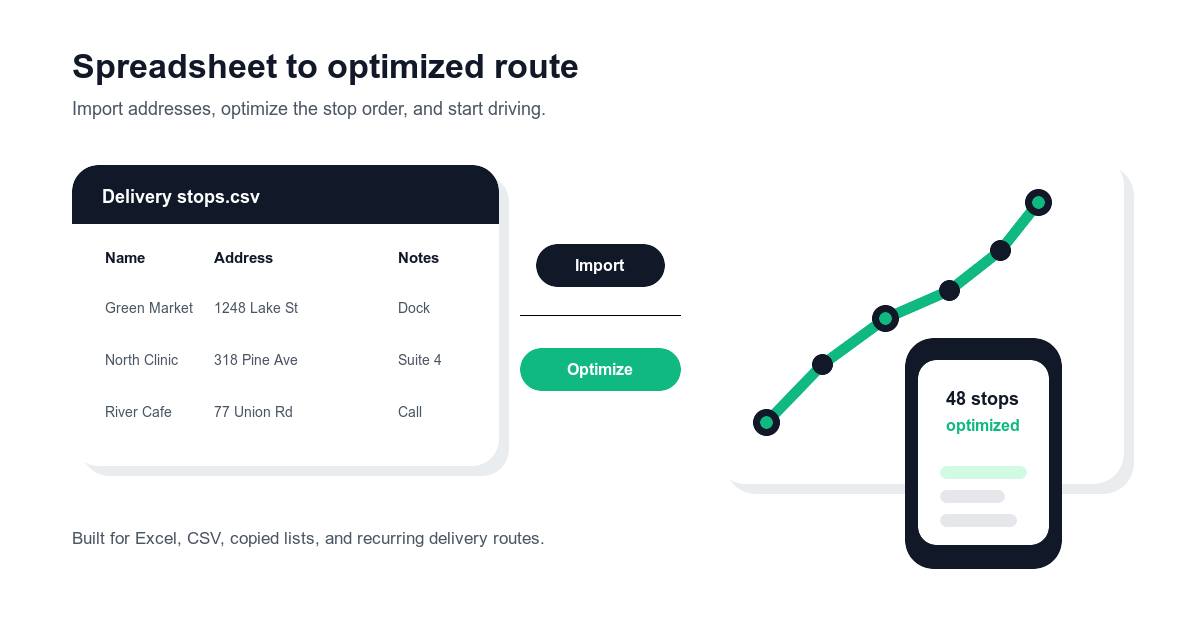
If your delivery stops already live in an Excel spreadsheet or CSV file, your route planning problem is usually not "finding directions." The real problem is turning a long list of names, addresses, notes, and delivery windows into a route you can actually drive.
Many drivers start by copying each address into a map app one at a time. That works for a small errand list. It breaks down when you have 20, 50, or 100 stops because every manual paste creates another chance for a missing apartment number or a route order that sends you across town twice.
This guide shows a practical workflow: clean the data, import or paste the stops, optimize the route, review the order, and then navigate from stop to stop. If you are still comparing tools, start with Google Maps Multiple Stops in 2026 and the free route planner comparison.
Why spreadsheet route planning gets messy
Spreadsheets are great for storing delivery data. They are not designed to decide the best driving order. A typical delivery sheet may include:
- Customer names
- Street addresses
- Apartment, suite, dock, or gate notes
- Phone numbers
- Order IDs or package counts
- Preferred delivery windows
- Special instructions
That information is useful, but most map apps only care about the address. When you copy addresses manually, the route loses the operational context that helps you complete the job correctly. Ten seconds per stop does not sound like much, but 60 stops can turn into 10 minutes of copying before you even start checking the route order.
What a good Excel route planner should support
A route planner built for spreadsheet-based delivery should do more than draw pins on a map. Look for a workflow that supports:
- Bulk import from Excel or CSV
- Multi-line paste for quick address lists
- Address parsing that keeps names and notes attached to stops
- Automatic route optimization for many stops
- Manual reorder when real-world priorities change
- Stop completion tracking during the day
- Route reuse for recurring customer lists
Independent drivers and small businesses usually do not need every enterprise dispatch feature. They do need fast input, reliable stop ordering, and a clear way to keep the route organized after the first stop.
Step-by-step: turn a spreadsheet into a delivery route
1. Clean your address columns first
Before importing anything, make sure each row has one complete delivery stop. The cleanest format is usually:
| Column | Example | Why it matters |
|---|---|---|
| Name | Green Market | Helps identify the customer quickly |
| Address | 1248 West Lake St, Chicago, IL 60607 | Gives the route planner the full location |
| Notes | Back dock, call on arrival | Keeps delivery instructions attached |
| Time window | 10:00 AM - 12:00 PM | Helps you prioritize fixed appointments |
| Phone | 312-555-0198 | Makes contact easy from the stop detail |
Avoid splitting one stop across multiple rows. If the suite number or delivery note sits in a separate row, it may be missed during import. Keep the complete address in one cell whenever possible.
2. Remove duplicates and obvious errors
Duplicate rows are common when lists are exported from order systems. Before routing, scan for:
- Same customer name with the same address
- Missing street numbers
- Addresses with only a business name
- Apartment or suite numbers placed in the wrong column
- Old stops that should not be on today's route
Route optimization can only sequence the stops you give it. A clean list produces a better route and fewer surprises on the road.
3. Import or paste the stop list
Once the spreadsheet is clean, import the file or paste the address rows into your route planner. The fastest workflow depends on how your list is stored:
- Use file import when you have a structured Excel or CSV export.
- Use multi-line paste when your dispatcher sends a simple address list.
- Use a saved address book when the same customers repeat every week.
Loop Route Planner is designed for this kind of daily input. You can bring in addresses in bulk instead of rebuilding the route one stop at a time, then keep the route editable before you leave.
4. Optimize the route before making manual edits
Run optimization first so you get a strong baseline route. After that, apply real-world judgment. For example:
- Move a fixed appointment earlier.
- Put a pickup before its related drop-off.
- Keep a preferred customer inside the requested time window.
- Move a fragile or high-priority order closer to the start.
If you manually sort the spreadsheet first, then optimize later, you may undo your own work. Let the route planner solve the geography first, then make the business-rule edits that only you know.
5. Review the map and stop list together
Before driving, check the full route visually. A spreadsheet can hide mistakes that become obvious on a map. Look for pins outside the service area, addresses that geocoded to the wrong city, and stops that should be grouped together.
This is also the time to split routes if needed. If one spreadsheet covers a whole metro area, you may get better results by planning separate north, downtown, and south routes.
6. Navigate and mark stops complete
After the route is ready, the job shifts from planning to execution. A good delivery workflow should let you open each stop in your preferred navigation app, then return to the route list and mark that stop as complete. That protects you from missed stops and makes the route easier to review later.
Common spreadsheet mistakes that slow drivers down
Most spreadsheet route problems come from small data issues, not from the route planner itself.
| Problem | What happens | Better approach |
|---|---|---|
| Missing city or ZIP code | Address may match the wrong place | Include full city, state, and ZIP |
| Suite number in notes only | Driver may miss the exact unit | Keep suite in address and repeat in notes if needed |
| Duplicate customer rows | Driver may visit twice | Deduplicate before import |
| Business name without street address | Stop may not be found reliably | Add the full street address |
| Mixed pickup and delivery rows | Route order may be confusing | Label pickup/drop-off in notes |
If your list comes from another system, create a simple export habit: one row per stop, one complete address per row, and delivery instructions in a notes column.
When Google Maps is enough
Google Maps can be enough for simple personal routes or a short list of stops. But once your route comes from a spreadsheet, you probably need more than basic navigation: bulk input, route optimization, stop details, and a reusable process.
For a deeper comparison, read How a Delivery Route Planner Can Improve Your Delivery Speed.
How Loop helps with spreadsheet-based delivery routes
Loop Route Planner is built for drivers and small teams that already manage stops in files, copied lists, or recurring customer sets. Instead of typing every address into a map, you can import or paste your stops, optimize the order, and keep each stop easy to manage during the day.
Loop works especially well when:
- Your stop list starts in Excel or CSV.
- You plan the same customers repeatedly.
- You need to make last-minute route edits.
- You want to keep stop notes and completion status in one place.
- You prefer to plan in Loop, then navigate with your usual map app.
That workflow keeps the spreadsheet as your source of delivery data, while Loop handles the route planning work that spreadsheets are not built to do.
FAQ
Can I import Excel addresses into a route planner?
Yes. A route planner with Excel or CSV import can turn spreadsheet rows into route stops without forcing you to type each address manually. For best results, keep one complete address per row and put delivery instructions in a notes column.
Can Google Maps optimize stops from a spreadsheet?
Google Maps is strong for navigation, but it is not built around spreadsheet import and high-volume stop optimization. For routes with many delivery stops, it is usually faster to import the spreadsheet into a dedicated route planner, optimize the route, then open each stop in your preferred navigation app.
What columns should my delivery spreadsheet include?
At minimum, include customer name, full address, and notes. If your schedule depends on timing, add a time window column. If drivers need to contact customers, add a phone column. Keep the format simple and consistent so every row can become one clean stop.
How many stops can I plan from a spreadsheet?
That depends on the route planner and your plan. Loop supports spreadsheet-style workflows for daily delivery routes and is designed for multi-stop planning, including larger routes that would be tedious to build manually.
Final takeaway
An Excel spreadsheet is a good place to store delivery data, but it should not be where you manually solve the route. Clean the sheet, import the stops, optimize the order, review the map, and execute with clear stop tracking.
Try Loop Route Planner if your delivery day starts with a spreadsheet and you want to turn it into a route faster.